

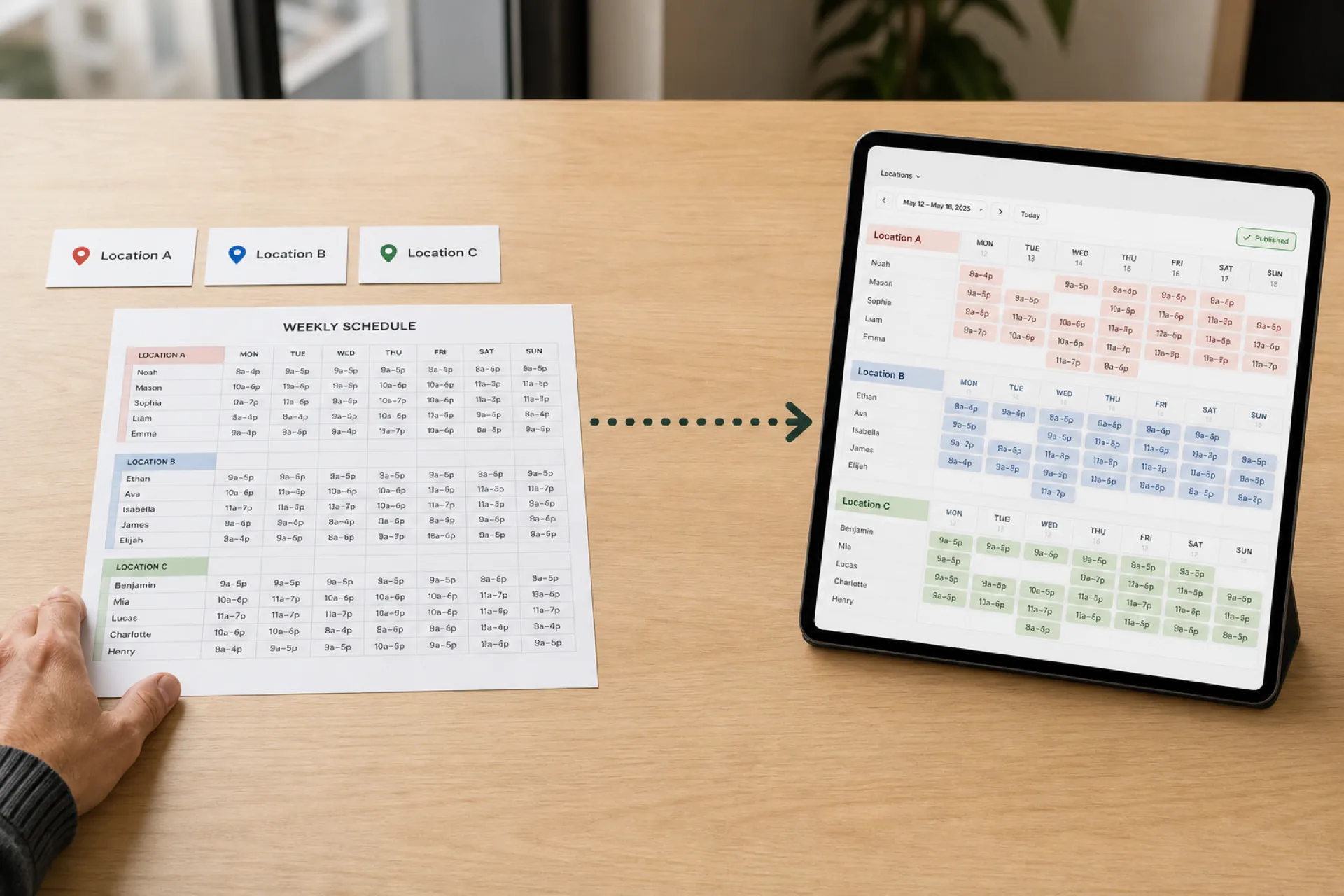
How to Create an Employee Schedule for Multiple Locations
Scheduling several locations is not the same as scheduling one store three times. Use a 10-step workflow, a staffing matrix, and one published roster.
How to create an employee schedule for multiple locations
Scheduling several locations is not the same job as scheduling one store three times. Each site has its own hours, peaks, and manager, and some people work at more than one. If those details live in separate files, you get double-booked staff, thin opening shifts, and more than one "official" roster.
This guide gives you a 10-step workflow, a staffing matrix with the math, rules for people who float between sites, and a worked three-location example you can copy.
Featured answer: List every location, set staffing needs by site and role, collect availability, mark who can float, assign home-location staff first, check coverage and total hours across all sites, publish one roster, and handle every change against that same roster.
Who this is for: USA operators running two or more stores, kitchens, warehouses, or field sites who still build the week in separate spreadsheets.
Why multiple locations are harder
The difficulty is the number of variables, not the calendar grid:
- Locations have different hours and different minimums for open, peak, and close.
- Availability differs by person, and some people can work at more than one site.
- Local managers need control, but headcount, hours, and rules should stay consistent.
- Call-offs and swaps in one location affect the whole group.
When each manager keeps a private file, these collide. Someone looks fully booked at Location A and still gets assigned at Location B for the same afternoon.
A single-site week fails locally: a thin open, a missed break, a late swap. A multi-site week fails in the seams: travel that was never scheduled, a floater who is already at 38 hours, a district total that looks fine because each tab hid the overtime. The calendar looks the same. The dependencies do not.
What every shift row should include
Employee, location, department, role, date, start and end time, breaks if you track them, approved time off, scheduled hours, the manager who owns the assignment, and a status (covered, open, or at risk). If any of these live in a text thread, you will rebuild the week every time someone asks "which store am I at Thursday?"
Put location on the row even when 90 percent of people never leave home. The 10 percent who float are the ones who create the second official roster. If location is only in the filename (StoreB-week32.xlsx), nobody searching the shared drive will trust it.
Status is not decoration. Covered means a named person on a qualified role. Open means you still need a body. At risk means the person is assigned but availability, hours, or travel make the shift fragile. Publishing a grid of names with no status hides the holes until opening.
The 10-step workflow
Use the same workflow at every location. Do not invent a new method per store.
Step 1: List every location
Include temporary or seasonal sites. Mark any day a site is closed before you assign anyone. Pop-ups, holiday kiosks, and a warehouse that only runs Thursday receiving still consume people. If they are missing from the list, home managers will "lend" staff in chat and you will never see the hours.
Write the list the way managers already talk: legal entity if it matters for payroll, the name on the door, the city, and whether the site shares a stockroom with another. Two "downtown" stores that are three miles apart are two locations. One campus with a cafe and a retail floor can still be two departments in one location if they share a punch clock and a manager. Pick a rule and stick to it, or floaters will be assigned to the wrong door.
Step 2: Define staffing requirements
Set how many people you need by role and by time window. A sales floor at noon is not the same requirement as a stock team at 8 a.m. See the matrix below. Write the minima once. "Busy Saturday" is not a number a second manager can copy.
Step 3: Organize people by home location and role
Give each person a home site and a primary role so nobody is treated as available everywhere. Home location is the default fill order, not a prison. Without it, every empty cell becomes a claim on the entire company.
Step 4: Collect availability and time off in one place
School hours, second jobs, and approved leave should be visible before you assign shifts, not after someone texts on Monday. A leave that lives only in Location A's manager's inbox will not stop Location C from booking the same person.
Step 5: Identify people who can float
Keep a separate pool with the sites each person can cover, the roles they are qualified for, and any travel limits. "Can help out" is not a pool. "Sales at A and B, 25-minute drive, not available before 11 a.m." is a pool.
Step 6: Build home-location coverage first
Fill every required shift with home staff before you use floaters. Put location, role, date, and hours on the same row. Floaters are the remainder, not the starting lineup. If you float first, home staff sit idle while Jordan drives across town.
Step 7: Check coverage
Look for empty opens and closes and thin peaks. A site can look staffed on paper and still fail Saturday from 12 to 5. Count bodies in the window, not names on the day. Six people on Saturday does not mean two on register from 2 to 6.
Print or filter the week as a timeline per location. If the 12-5 sales row needs six people and you only see four names overlapping that window, you are short 10 coverage hours (2 people × 5 hours), not "a little light." That is the matrix talking. Fix it with home staff, an open shift, or a qualified floater before you publish.
Step 8: Check hours across all locations
Total each person's hours across every site, not per store file. More on this below. This is the step private files always skip.
Step 9: Publish one official roster
Employees should not have to compare a spreadsheet, a group chat, and a printed copy. One send, one timestamp, phones and a poster that match. If two versions exist, the unofficial one will win on Saturday morning.
Confirm the send reached people who float. They are the most likely to still have last week's Location B PDF in email. A publish that only the home manager opens is not a company week. Ask for a simple check: every assigned person opened the week, or you do not close Friday.
Step 10: Manage changes against the published week
Route call-offs, swaps, and open shifts through the roster so everyone sees the same version. A Location B swap that never hits the shared week is how Location A still expects that closer.
Build a staffing matrix (with the math)
A staffing matrix turns "we need more people" into numbers you can schedule against. This example is hypothetical, so use your own counts.
| Location | Department | People needed | Peak window | Hours in window | Coverage hours needed |
|---|---|---|---|---|---|
| A | Sales | 6 | 12-5 PM | 5 | 30 |
| A | Stock | 3 | 8-11 AM | 3 | 9 |
| B | Sales | 5 | 1-6 PM | 5 | 25 |
| B | Customer service | 2 | 10 AM-4 PM | 6 | 12 |
| C | Sales | 4 | 12-5 PM | 5 | 20 |
| Total | 96 |
Coverage hours needed = people needed × hours in the window.
Build the week against these rows first. Then compare scheduled hours to the needed hours for each row. A row that is under its number is a gap. A row far over its number is cost you may not need.
Copy-paste template for your own matrix:
Location | Department | People needed | Peak window | Hours | Coverage hours | Scheduled | Gap
Do not average the week into one headcount per store. Location C can hit 20 sales coverage hours on Saturday and starve Monday open. Keep weekday and weekend rows if the pattern differs. Raise weekend rows ahead of seasonal peaks. A matrix that works in January can fail in December.
When you review last week, fill Scheduled and Gap from what actually ran, not from what you hoped. Persistent gaps on the same row mean the matrix is wrong or hiring is behind. Persistent overage on the same row is a habit, not a surprise rush.
Scheduling people across locations
Cross-location scheduling helps when one site is short, another has spare hours, and the employee can realistically get there.
Before you move someone, check:
- Travel time. If the shift is between two sites in the same workday, travel time can count as paid working time under federal law (U.S. Department of Labor guidance on travel between job sites). Allow for it in the schedule and in the pay.
- Skills and role fit. Floaters should be qualified for the role at the other site.
- Weekly hours across all sites. See below.
- Preference and availability. Moving someone because a cell is empty is not a plan.
Same-day splits look efficient and fail on the road. A 9 a.m. close at A and a 10 a.m. open at B with 20 minutes of traffic is not a 10-minute break. Put travel on the row or do not split the day.
Role fit is a safety and service issue, not a preference. A stock specialist who has never run Location B's register is not a sales float. Qualifying people in the pool takes a conversation once. Guessing on Thursday afternoon takes a customer complaint.
Overtime across locations: one employer, one total
Under the federal Fair Labor Standards Act, hours an employee works for the same employer are generally added together, even at different locations. A floater who looks part-time at each site can still cross 40 hours.
Illustrative example: Jordan works 24 hours at Locations A and B. Location C's manager, who cannot see those hours, books Jordan for 20 more. That is 44 hours. At an $18 hourly rate, the 4 overtime hours carry an extra $36 of premium pay (4 × $9), and nobody planned for it. If you schedule from one shared roster with combined hours, that overlap is visible before you publish.
State and local rules can be stricter than federal law, so check your jurisdiction. This is general information, not legal advice.
If you operate mixed brands under one EIN, treat hours as combined until counsel says otherwise. Location tabs in Excel do not create separate employers. Franchisees with separate entities are a different legal fact pattern; do not copy this post onto that structure without advice.
The $36 is a tiny number on purpose. It is the premium on four hours, not a payroll forecast for your company. Scale it by how many floaters you have and how often private files hide the total. The operational fix is visibility of combined hours before publish, not a promised savings percentage.
If your locations are in different cities or states
Rules can differ by location, including predictive-scheduling laws in some cities and states that require advance notice of schedules. For example, New York City requires 72 hours' notice for covered retail employers. See our NYC retail scheduling and Fair Workweek guide. Several other jurisdictions require roughly two weeks. Check each location's rules rather than applying one standard to all sites.
A district that publishes Friday for a city with a 14-day rule is already late, even if another city in the same company only needs 72 hours. The shared roster should carry the strictest deadline you actually operate under, or you will train managers to the loosest one.
Labor posting, minor work rules, and meal-break timing can also differ by site. Do not assume the home-office handbook covers every city. Confirm with counsel for the locations you run.
How to avoid coverage gaps
Set a minimum for each location before you assign names.
Protect opens, closes, and weekends first, then fill peaks.
Raise weekend rows ahead of seasonal peaks. A matrix that works in January can fail in December.
If coverage is thin after home staff are assigned, post the shift as open or use a qualified floater. Do not assume someone will show up.
Keep one named owner per location who signs off before publish.
Opens and closes are where multi-site files lie. Midday looks full because everyone overlaps at noon. The 8 a.m. keyholder and the 9 p.m. closer are the shifts that bounce to the district Slack. Fill those cells in step 6, before you admire the peak.
An open shift on the roster is honest. A blank cell that "someone will take" is how you invent a Friday add and a travel conflict. Qualified floaters exist to fill remaining gaps after home coverage, not to paper over a matrix you never believed.
The named owner is the person who cannot say "I thought Store B published." One name per location, one publish event for the company week.
A weekly cadence that works
| Day | Task |
|---|---|
| Monday | Review last week's gaps and call-offs. Update the matrix. |
| Tuesday | Collect availability and time off. |
| Wednesday | Build home-location coverage. |
| Thursday | Fill gaps with floaters. Check hours across sites. |
| Friday | Publish. Confirm everyone has opened it. |
Adjust the deadline to your notice requirements. The point is that publish happens on the same day every week.
If your city needs 14 days' notice, slide the whole table earlier. Do not skip Monday's gap review. That is how the same Saturday sales row stays understaffed for a month.
Friday publish only works if Thursday's hour check is real. Combined hours across sites belong on Thursday, not in payroll on the 15th.
Handling employees who work at multiple sites
Floaters are where multi-location weeks usually break.
- Check the person's full week before you add a second site.
- Avoid overlapping shifts and back-to-back shifts that ignore travel.
- Keep the location on the published shift so nobody guesses which store to open.
- Cap weekly hours across all locations.
- Make one manager the primary owner of each floater's week, so two managers do not book them independently.
Primary owner does not mean the other manager cannot request the person. It means one person sees the whole week and says yes or no. Without that, Location B books Wednesday morning and Location A already had Wednesday afternoon, and Jordan finds out on the subway.
Caps should match how you think about overtime, not a vague "don't overwork them." If 40 is the federal overtime line for that employee, the shared roster should show a running total that both managers can see. If you use a lower internal cap for floaters because of travel fatigue, write that number down.
Do not hide floaters in a comments column. If Jordan is at B on Wednesday, A's grid should show Jordan as unavailable that day, not as a blank sales cell waiting to be filled. Blank cells invite the second booking.
Excel or software?
Excel works when one person owns one file and the week barely changes. It stops working when several managers edit copies, each site has its own tab, people move between sites, and changes happen after the week is emailed. At that point, merging hours and coverage becomes a job in itself. VLOOKUP across tabs does not catch a Wednesday overlap if Location B's file was emailed at 4 p.m. and Location A's file was saved at 4:10. See workforce scheduling software vs Excel.
There is no headcount that automatically requires software. Move when:
- Building the week takes several hours.
- You maintain more than one spreadsheet.
- Managers change the week in different copies.
- Employees work across locations.
- Coverage gaps keep repeating or overtime shows up after Friday.
- People do not know which schedule is current.
Look for a shared roster, location-based permissions, availability, open shifts, swaps, time off, attendance, and a view that shows more than one site at a time. Location-based permissions matter: a Location B manager should edit B, request a floater, and not silently rewrite Location A's Friday. For comparisons, see best scheduling software for multi-location businesses and the multi-location workforce management guide. For pricing, see the employee scheduling software pricing guide.
Software does not replace the 10 steps. It makes step 8 and step 10 cheaper. If you skip home-location-first and the matrix, a nicer grid will still double-book Jordan.
Worked example: a three-location retail group
This is hypothetical.
- Location A: 15 employees, busiest 12-5 PM
- Location B: 10 employees, later peak 1-6 PM
- Location C: 8 employees, lighter weekday traffic
Jordan has Location A as home, is qualified for sales at B, is available Monday to Friday, and the two stores are about 20 minutes apart.
A clean float week: Jordan works A on Monday 10-6, B on Wednesday 12-8, and A on Friday 10-6. That is 24 hours, under the weekly cap. Each shift is on a separate day, so there is no travel between sites in the same workday.
A broken float week: Location B books Jordan Wednesday 9-5 while Location A still has Jordan Wednesday 12-8. Each file looks fine on its own. The conflict only appears when someone asks Jordan which store to open.
The fix: Build home-location coverage first. Use Jordan only for the remaining B peak, and publish one roster so both managers see the same assignment.
Walk the matrix against this group. Location A sales needs 30 coverage hours in the 12-5 window. If A's home staff already fill those hours, Jordan should not be pulled to A peak and then loaned to B for overlapping Wednesday hours. B's 1-6 sales row is where a Wednesday 12-8 at B can help, on a day A does not already own.
Location C's lighter weekdays are a temptation. C's manager sees Jordan "only working 24" and adds 16 hours of C shifts. Combined hours jump, travel appears, and A's Friday 10-6 is now at risk because Jordan is exhausted. C fills from C home staff first. Jordan is not a spare battery.
Metrics to review each week
| Metric | What it tells you |
|---|---|
| Coverage rate (scheduled hours ÷ needed hours) | Whether each site is under or over staffed |
| Open shifts unfilled at publish | Where you are short |
| Double-booking conflicts found | Whether your process catches overlaps |
| Overtime hours (all sites combined) | Hidden cost from floaters |
| Changes after publish | How stable the plan really is |
Review these on Monday before you rebuild. Coverage rate by matrix row, not by store average. A store at 100 percent overall can still have a 60 percent Saturday peak.
Open shifts at publish are a hiring or float-pool signal. Open shifts created on Saturday morning are a process signal.
If double-booking conflicts found is always zero, your check is not real or you are not looking. A healthy process finds a few near-misses and fixes them on Thursday.
Combined overtime that only appears in payroll is the private-file tax. Combined overtime you saw on Thursday and chose anyway is a decision.
Changes after publish will never be zero in retail or restaurants. A sudden climb means the published week is not trusted, or availability was collected too late.
How Heyshift helps
Heyshift is built around one workforce, multiple locations, and one published roster. It is not an enterprise HRIS. Managers can keep multi-location scheduling, availability, open shifts, swaps, attendance, time off, hours, and mobile access in one workspace.
Paid plans start at $4 per seat per month after a 30-day free trial, with unlimited locations on paid plans. See pricing and multi-location scheduling software.
Heyshift can show combined hours and location on the same shift. It does not replace FLSA analysis or city notice rules. Confirm overtime, travel time, and predictive scheduling with the U.S. Department of Labor or an employment attorney for the cities you operate.
Start a 30-day free trial on two real sites, not a sample company with generic names.
Conclusion
Multi-location scheduling fails in the seams: private files, floaters with no owner, hours counted per store, and three versions of Thursday. The 10 steps are the same at every site on purpose. Home coverage first, matrix numbers before names, combined hours before publish, one roster after.
Copy the three-location example with your own peaks. If Jordan can still be booked twice on Wednesday, you do not have a shared week yet. When the week is shared, software is a force multiplier. Until then it is a prettier second file.
The test is boring and it is enough: pick next week, list every site including the seasonal one, fill the matrix, assign home staff, then try to float Jordan into an overlap. If the process catches it on Thursday, you are ready to publish. If it only catches it when Jordan texts, keep the 10 steps and delay the tool demo until the week is one file.
Frequently Asked Questions
Continue with related topics
More articles on topics related to this one.

Employee Schedule Change Management: One Official Roster
Learn employee schedule change management: a simple approval workflow, change log and notification process that keeps one official roster.
Read article
How far in advance should employee schedules be published? A manager's guide
How far in advance should employee schedules be published? Use practical notice windows, a weekly cadence, and a controlled process for late changes.
Read article
Employee scheduling software with a mobile app: features, benefits, and how to choose
Compare employee scheduling software with a mobile app. See which features matter for shifts, availability, time off, swaps, and attendance.
Read article