

Free Employee Schedule Template (Excel, Google Sheets & PDF)
Create employee schedules faster with this free employee schedule template. Download it in Excel, Google Sheets, or PDF, customize it for your business, and keep your team organized.
Free download · No account required · CSV for Google Sheets
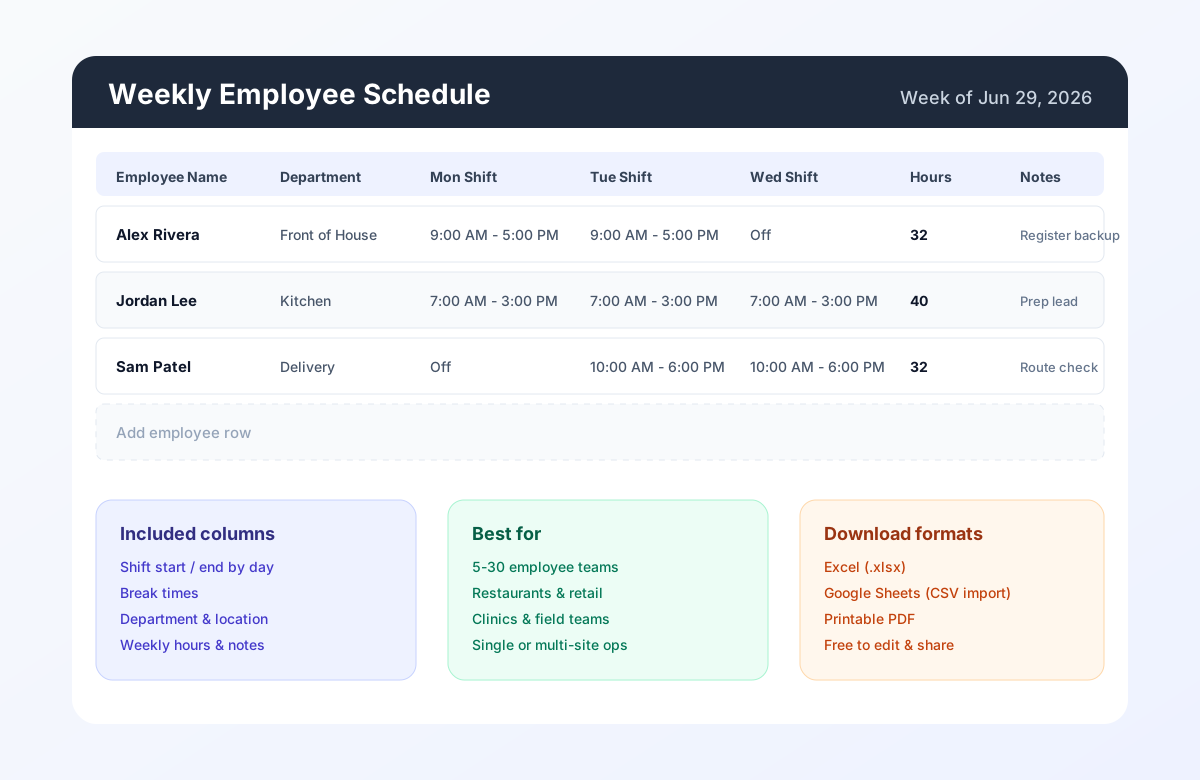
Table of contents
- What is an employee schedule template?
- Who should use this template?
- Download the template
- What's included?
- How to use the template
- Best practices
- Common scheduling mistakes
- When this template works well
- When a spreadsheet stops working
- Why businesses upgrade to HeyShift
- Business example
- Frequently asked questions
What is an employee schedule template?
An employee schedule template is a pre-built weekly layout that helps managers assign shifts without rebuilding a grid from scratch every cycle. Instead of opening a blank spreadsheet and guessing column structure, you start with rows for employees and columns for days, shift times, breaks, departments, and notes.
Businesses use schedule templates because hourly work is repetitive but never identical. You still need predictable columns for shift start, shift end, break windows, and weekly hour totals, yet every week brings different availability, time-off requests, and coverage gaps. A good template keeps that structure stable while you swap names, times, and locations.
Templates work best when your team is small enough that one manager can see the full week at a glance. They are especially useful for:
- New managers who need a consistent format before adopting software
- Single-location teams publishing a weekly roster to a break room or group chat
- Seasonal hiring when you add rows quickly without redesigning the sheet
- Pilot sites testing a publish rhythm before rolling out a platform
A template is not a substitute for shift scheduling software once change volume, attendance tracking, and multi-site visibility become daily constraints. It is the practical starting point: a shared format everyone can read, edit, and print.
Featured answer: A free employee schedule template gives managers a ready-made weekly grid for shift times, breaks, departments, and notes in Excel, Google Sheets, or PDF so they can publish faster without rebuilding spreadsheets from scratch.
For related operational depth, see restaurant staff scheduling, retail scheduling best practices, and why spreadsheets fail for workforce scheduling.
Who should use this template?
This free work schedule template fits any business that assigns hourly shifts weekly and needs a format staff can read quickly.
| Team type | Why this template helps |
|---|---|
| Restaurants | Separate FOH, kitchen, and delivery rows with shared break columns |
| Retail stores | Balance floor coverage, stock, and register blocks by day |
| Healthcare clinics | Map roles and rooms while keeping weekly hours visible |
| Warehouses | Plan pick, pack, and receiving bands across shifts |
| Construction crews | Track crew leads, sites, and day-level assignments |
| Cleaning businesses | Route teams by client site using the Location column |
| Security companies | Stack posts by site and shift block |
| Hotels | Cover front desk, housekeeping, and maintenance peaks |
| Delivery teams | Align drivers to dispatch windows and route notes |
| Manufacturing | Coordinate lines, shifts, and overtime visibility |
If you manage 5 to 30 employees in one or a few locations, this staff schedule template is usually enough to publish a clear week. Larger teams can still use it for planning, but they often outgrow manual updates (covered later in this guide).
Download the employee schedule template
Choose the format that matches how your team works:
| Format | Best for |
|---|---|
| Excel (.xlsx) | Offline editing, familiar formulas, local save |
| Google Sheets (CSV import) | Shared editing with managers or shift leads |
| Printing and posting for staff without app access |
Use the download buttons at the top of this page. Each file includes sample rows you can replace, plus blank rows for additional employees.
Google Sheets tip: After download, open Google Sheets, choose File > Import, upload the CSV, and select Replace spreadsheet or Insert new sheet(s) depending on your workflow.
Template preview
The preview image above shows the core layout:
- Employee Name identifies who is scheduled
- Department groups roles (kitchen, sales floor, clinical, warehouse zone)
- Location supports multi-site operators
- Daily shift columns include start, end, and break times
- Weekly Hours helps spot overtime early
- Manager Notes capture training days, certifications, or special instructions
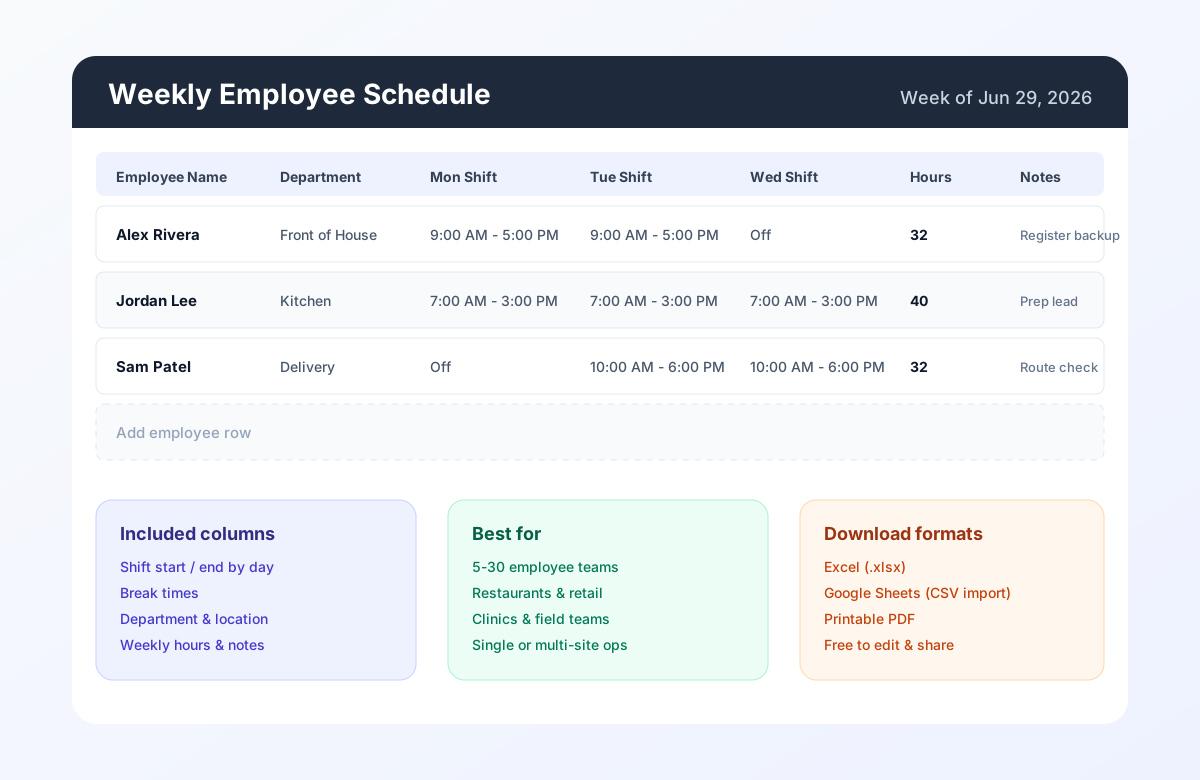
Employee schedule template with shift columns, break times, departments, and manager notes.
What's included?
Every column in this employee roster template has a clear job:
| Column | Purpose |
|---|---|
| Employee Name | Identifies scheduled staff for the week |
| Department | Groups shifts by team, station, or function |
| Location | Tracks site or client for multi-location schedules |
| Shift Start / Shift End (by day) | Defines paid work blocks |
| Break Time (by day) | Documents meal or rest breaks for compliance visibility |
| Weekly Hours | Rolling total to catch overtime before publish |
| Manager Notes | Stores one-off instructions, training, or coverage flags |
Sample rows demonstrate realistic shift patterns. Replace them with your roster, or delete samples and start from blank rows at the bottom of the sheet.
How to use the template
Follow these five steps to go from download to published week:
Step 1: Add employees
Enter active employees in the Name column. Keep names consistent with payroll and attendance tracking records so managers do not reconcile two spellings of the same person.
Step 2: Choose dates
Label the week in the header (or add a Week Of cell at the top of the sheet). Align dates with your payroll period if you use weekly totals for overtime review.
Step 3: Assign shifts
Fill shift start and end times by day. Use Off for days without assignments so part-time staff can scan the sheet quickly. Add break windows where required.
Step 4: Check coverage
Scan each day column for gaps during open hours. Compare Weekly Hours against your budget and state overtime thresholds. If you use a calculator, pair this step with the scheduling ROI calculator.
Step 5: Share with employees
Export PDF for posting, share the Google Sheet link read-only, or email the Excel file. Publish at least several days before the week starts so staff can plan childcare, transportation, and second jobs.
Best practices
Strong weekly schedules share the same habits:
- Publish early. Give staff at least 3 to 7 days of notice when possible.
- Balance workloads. Rotate closing shifts and weekend blocks fairly.
- Respect availability. Track requests in one place before you edit the grid.
- Plan overtime. Use Weekly Hours before you publish, not after payroll.
- Keep contact information updated. Confirm phone numbers for last-minute coverage.
- Review weekly. Short retros prevent the same coverage gap every Tuesday.
For deeper playbooks, read employee attendance tracking and multi-location workforce management.
Common scheduling mistakes
| Mistake | Impact |
|---|---|
| Double-booking one employee | Confusion, no-shows, and trust issues |
| Ignoring availability | More call-offs and last-minute swaps |
| Publishing late | Lower morale and higher turnover risk |
| Manual edits without version control | Errors and outdated rosters circulating |
| Poor communication | Missed shifts and client coverage gaps |
Related resources
More templates, guides, and tools for building and running your schedule.
- TemplateRestaurant employee schedule template
- TemplateEmployee availability form template
- Template8-hour shift schedule template
- Template10-hour shift schedule template
- ArticleRestaurant staff scheduling guide
- ArticleRetail employee scheduling best practices
- ArticleEmployee attendance tracking guide
- ArticleWhy spreadsheets fail for workforce scheduling
- ArticleWorkforce scheduling software vs Excel
- ArticleEmployee scheduling ROI guide
- ResourceScheduling ROI calculator
- ResourceEmployee scheduling software
- FeatureShift scheduling software
- FeatureAttendance tracking
- ResourceStart 30-Day Free Trial